Setup
1. Claude Setup: - Access Claude through the designated platform (e.g., Anthropic's website). - Registeer for a free acocunt.
2. TurboCASH AI Script Setup: - You should have TurboCASH 5 Business Class installed.
- You can use the free versions of TurboCASH, but you will get better results with TurboCASH 5
3. HANDYMAN-B Dataset:
- For the exersises Ensure you have the HANDYMAN-B dataset files accessible on your system. This can be found in \bin\tutorials\engTutorials. Preferably use a copy.
- Typically, these files should be in a CSV or compatible format.
Exercises
Exercise 1: Generating IFRS Reports
1. Open Claude and start a new conversation.
2. UPLOAD the TurboCASH Bible Script to your Claude chat.
3. Use TurboCASH to creatge a trial balance report in PDF format
4. Upload the trial balance PDF into you chat
5. Use the following prompt:
"Using the HANDYMAN-B trial balance, please generate an IFRS-compliant Statement of Financial Position and Statement of Comprehensive Income."
Exercise 2: Importing Bank Statements
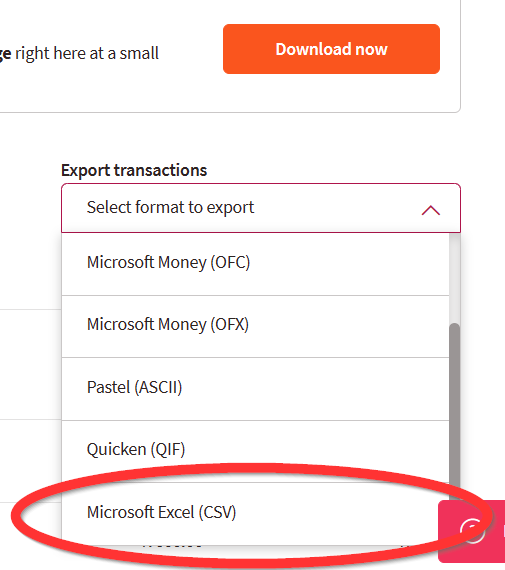
1. Download your bank statement file (ensure it's in a compatible format, usually CSV or OFC).
2. Upload the OFC or CSV file to you Claude chat.
3. List the TurboCASH chart of accounts to a PDF file
4. Load the chart of accountsrep[ort into your chat
5. In Claude, use the following prompt:
"Please convert this bank statement data to the TurboCASH import format, allocating accounts based on the HANDYMAN-B chart of accounts."
Tips and Best Practices
1. Always review AI-generated reports and conversions for accuracy.
2. Use specific and clear prompts when interacting with Claude.
3. Save your work frequently and maintain backups of your financial data.
Troubleshooting
- If Claude produces inconsistent results, try rephrasing your prompt or providing more context from the HANDYMAN-B dataset.
- If the TurboCASH AI script fails to process Claude's output, ensure the format matches TurboCASH's requirements. You may need to adjust Claude's output manually.
- For persistent issues, consult the TurboCASH support documentation or contact their customer support forums on Reddit.
Remember, while AI tools like Claude can significantly streamline your workflow, always apply professional judgment and review all AI-generated financial reports before finalizing.
This is a simple example 10-20 minutes using AI to convert a CSV file from your bank into a format that can be imported into TurboCASH. Without AI this would have been a complex task. With AI it is a simple task.
If you are a TurboCASH consultant you may wish to join the TurboCASH consultant's Group
Join the AI discussion at Reddit
Start by signing up to free chat.openai.com
This example Uses
TurboCASH 5 Business Classmake a copy of the set of books:

Choose Your LLM
You will need to register with an LLM. We recommend that you register with all three of these LLMs. LLMs have daily limits, when you hit one daily limit move to the next LLM. If you become a really high volume user, we have found Claude at $20 to be a high performer.
Example #turbocashai with Claude
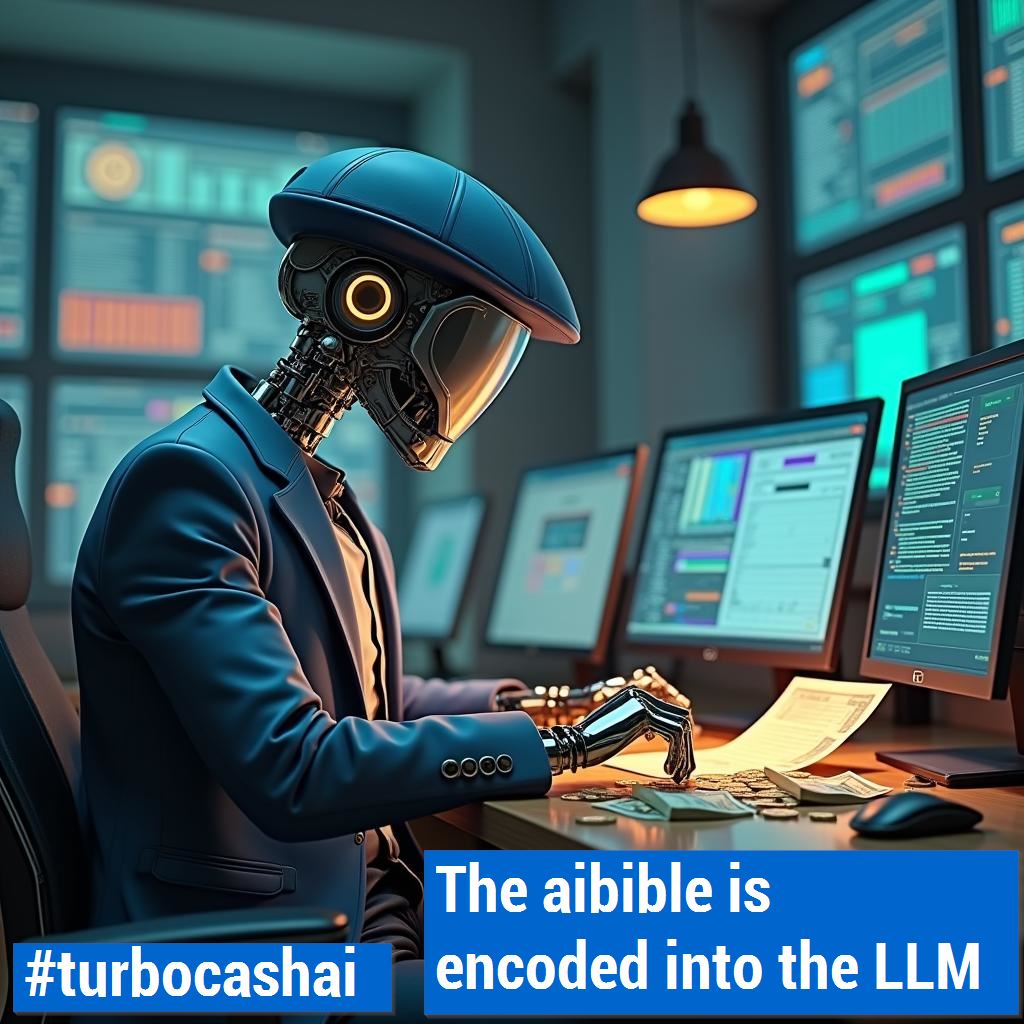
Anthropic's claude is a leading LLM.
Upload the TurboCASH Bible Script to your Claude Chat
Upload yrelevant TurboCASH Reports to your Claude Chat.
#turbocashai refers to the integration of AI capabilities into the TurboCASH accounting software. It aims to automate tasks and augment human expertise in accounting processes. Key components include:
- Large language models (LLMs) to analyze financial data and generate reports
- TurboCASH Business Class subscription
- AI Bible to provide guidelines and consistency for AI usage
The AI Bible has two parts:
- Human-readable script version for users
- Machine-optimized version for AI systems
Capabilities include:
- Automating bank statement imports
- Generating IFRS-compliant financial reports
- Allocating transactions to accounts
It uses a freemium model:
- Basic AI features are free
- Full capabilities require TurboCASH Business Class subscription ($6/month)
- May require paid LLM service ($10-20/month) for heavy usage
The goal is to reduce tedious accounting tasks and allow accountants to focus on strategy and analysis. It still requires human oversight, as AI can make mistakes. It is seen as augmenting rather than replacing human accountants. The system is under active development, with capabilities expanding over time. Users are encouraged to experiment and provide feedback to improve the system.
The overall goal is to leverage AI to make accounting processes more efficient while still relying on human expertise for critical thinking and oversight.
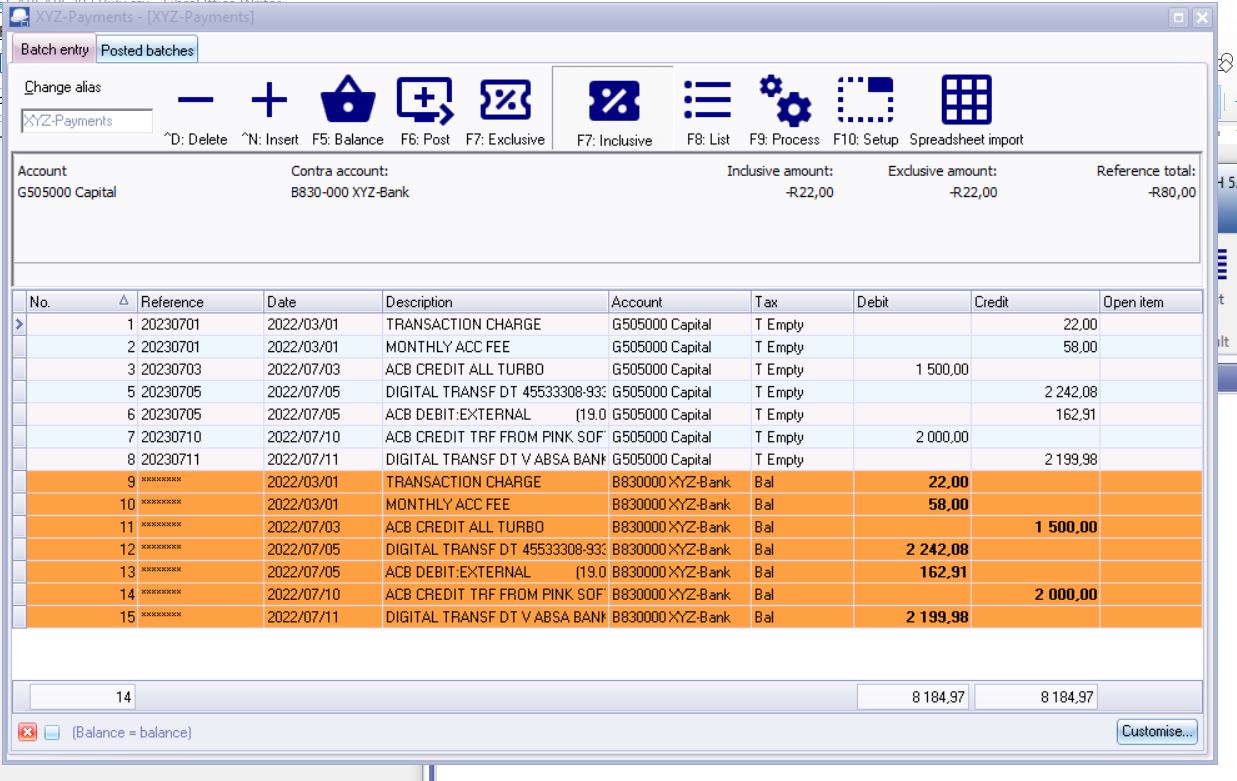
We are aiming to get an import into a Turbo
These files are made for machines to read, can look a bit wierd if you are not used to them. Examples of what the files will look like
Here is an example of a #ABSACSV Bank downloaded in CSV format
stored in
BIN\TutorialsUTORIALS\EN-TUTORIALS\HANDYMAN-A\bank\bankexportcsv.csv
Date,Description,Amount,Balance
20230701,TRANSACTION CHARGE,-22.00,2146.76
20230701,MONTHLY ACC FEE,-58.00,2088.76
20230703,ACB CREDIT ALL TURBO,1500.00,3588.76
20230705,"NOTIFIC FEE SMS NOTIFYME ( 1,20 ) 2 SMS NOTIFICATIONS",0.00,3588.76
20230705,DIGITAL TRANSF DT 45533308-9333-3133 ABSA BANK credit card,-2242.08,1346.68
20230705,"ACB DEBIT:EXTERNAL ( 19,00 ) BLIARTY033551333330900C/P05JUL",-162.91,1183.77
20230710,ACB CREDIT TRF FROM PINK SOFTWA,2000.00,3183.77
20230711,DIGITAL TRANSF DT V ABSA BANK credit card,-2199.98,983.79
20230718,"NOTIFIC FEE SMS NOTIFYME ( 3,00 ) 5 SMS NOTIFICATIONS",0.00,983.79
Here is an example of a #turbocashcashbookimportexport exported from HANDYMAN-A
stored in
BIN\TUTORIALS\EN-TUTORIALS\HANDYMAN-A\cashbook\receipts.csv
To import a batch into TurboCASH this exact format must be used
D5000 01/03/2022 Cash received from owner G505-000 B810-000 T -5000 False Empty Empty
D5001 16/03/2022 Payment received - Thank you D1AB-GRE B810-000 T -2000 False Empty Empty
D5001 16/03/2022 Payment received - Thank you D1MA-CDS B810-000 T -1000 False Empty Empty
******** 01/03/2022 Cash received from owner B810-000 T810-000 T 5000 True Empty Empty
******** 16/03/2022 Payment received - Thank you B810-000 T810-000 T 2000 True Empty Empty
******** 16/03/2022 Payment received - Thank you B810-000 T810-000 T 1000 True Empty Empty
We require chat.openai.com to convert the #ABSACSV into #turbocashcashbookimportexport with:
ignoring column 4 Balance in #ABSACSV
using {Tab} delimiters instead of comma
put strings into columns 1 and 3
Put date in the same format as #turbocashcashbookimportexport in colums 2
Putting the fields G505-000 B810-000 into columns 4 and 5 of #turbocashcashbookimportexport
Putting the Letter T into column 6 of #turbocashcashbookimportexport
The Amount from column 3 of #absacsv as a two decimal real number - into column 7 of #turbocashcashbookimportexport
and the strings False Empty Empty into columns 8,9,10 of #turbocashcashbookimportexport
Importing into a Spreadsheet
claude will return a converted file. YOu may wish to import thsi into a spreadsheet.
Copy the converted file and save it to local disk
Open with a free spreadsheet - Libreoffice
Microsoft Office 365 not tested
-Copy the chat.openai data using the Copy code link on the top right of the output into a spreadsheet
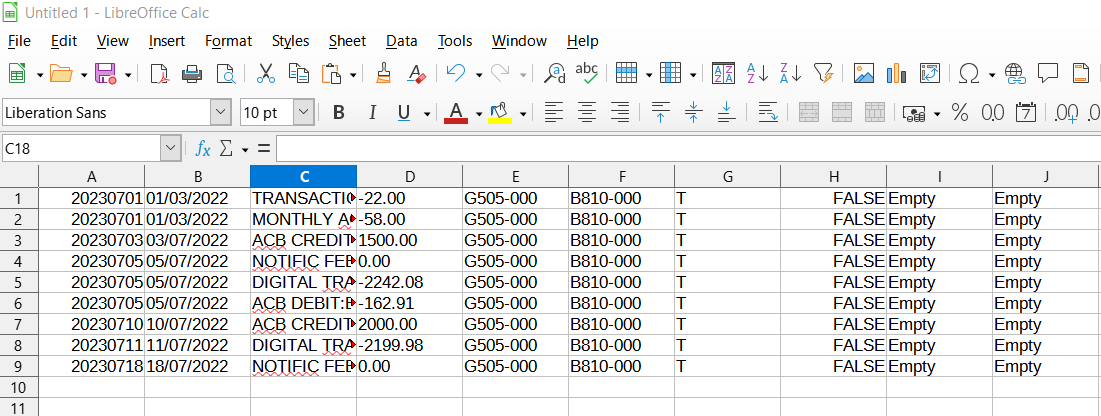
Save as a CSV file
With {Tab}delimited format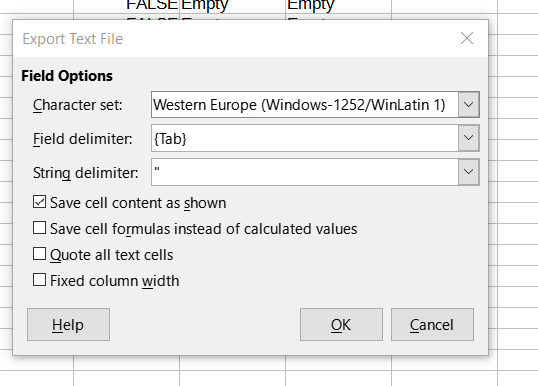
Import into TurboCASH
Once you have opened the TurboCASH Batch, use F9 Processs
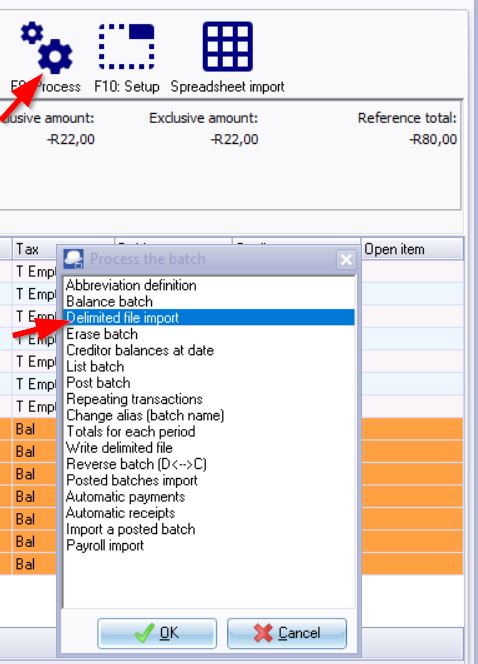
The above example uses ABSA data #ABSACSV
Download your own Bank transactions in CSV format.
use the target conversion name #turbocashcashbookimportexport