Importing Bank Transactions into TurboCASH

Spreadsheet
The bankimport spreadsheet is a set of transforms of CSV files to make them compatible with TurboCASH Imports

Open Office
bankimport spreadsheet is tested with Open Office .


bank import into TurboCASH
bank import (1:30)ondemand_video
Video to show how to use the bank import spreadsheet to transform your data.
bank import in detail (9:10)ondemand_video
Video in detail to show how to use the bank import spreadsheet to transform your bank data. This assumes you are an absolute beginner to spreadsheets, TurboCASH and CSV files

TurboCASH Bank Import
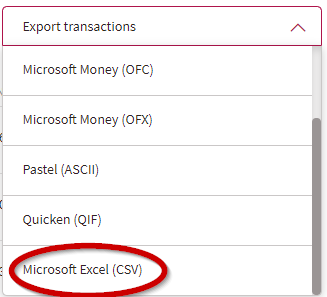
filter_1 Download your bank Statement from your bank and save it to your PC.
filter_2 Open the Bankimport Spreadsheet in Open Office and choose your bank.

filter_3 Open your download in a second spreadsheet, use Text delimiter ''
Copy the transactions from your download into the correct import sheet.
Dates must be in the precise format as shown
You can preallocate the accounts (Column D of the import) but they must be in exactly the format shown

filter_4 Extend the transformation in the second spreadsheet import tab by copying the formula over the required number of rows

filter_5 Save your import tab using the csv option {Tab}. Use the option to Edit filter and make sure your export is {Tab} delimited
